Showing posts with label windows 7. Show all posts

Windows 7 Ultimate from Microsoft is the long awaited successor to the ubiquitous Windows Vista operating system. Building upon Vista’...


Windows 7 Ultimate from Microsoft is the long awaited successor to the ubiquitous Windows Vista operating system. Building upon Vista’s impressive feature set, Windows 7 adds many features which simplify the way you use your PC, as well as the way that your PC connects to the world.
The Ultimate edition of Windows 7 is designed to meet the needs of business and home use alike. It omits none of the features that are found in the Home Premium or Professional editions of the software. These include improved desktop navigation, improved speed, the Internet Explorer 8 web browser, Windows Media Center, and HomeGroup networking.
Other carry-over features include Windows XP Mode, which allows you to run legacy applications in a true virtualization of Windows XP. You’ll also be able to join Domains, which is often a requirement for connecting to corporate networks. Finally, the Professional edition adds the ability to backup your system to a home or business network.
The Ultimate edition adds BitLocker, which allows you to encrypt data on your hard drive and other storage devices. Encrypting data is critical in environments where it is imperative that sensitive data does not fall into the wrong hands. You’ll also be able configure the OS to use any of 35 languages, making the Ultimate edition an excellent choice for multilingual users.
Both the 32-bit and 64-bit editions of the operating system are included on the disc, allowing you to install the edition which best suits your needs.
User Interface Enhancements
An improved taskbar allows you to launch programs and switch between them when they’re open. You can pin any program to the taskbar, making it just a click away. Rearrange icons via clicking and dragging, Icons are bigger than in previous versions, making them easier to identify. Hover over an icon and view thumbnails of every file or window that is currently open in that program; hover over the thumbnail and see a full-screen preview of that window. Move the cursor away, and the preview disappears.
There are numerous Desktop enhancements present in Windows 7. Snaps allows you to quickly grab a window and pull it to either edge of your screen, automatically resizing the window to occupy half of your screen.
You can also quickly view gadgets, or grab a file from your desktop. Move your mouse to the lower right corner of your desktop and all open Windows will become transparent. Need to hide all but one window? Grab the one you would like to keep at the top and shake it, all other windows will hide. Shake the window again, and they’ll return.
Jump Lists allow you to quickly reach files with which you’ve been working. Simply right-click an application icon to see which files it has recently opened. You can even pin files to a Jump List, ensuring they always appear on it, allowing you to access frequently-used files with only a few clicks.
Certain programs, including Windows Media Player, can pre-populate their Jump Lists with common tasks. You can play all of your music or resume the most recently played playlist via the Media Player Jump List. In Internet Explorer, frequently-visited and recently-visited websites will appear.
Windows Search has been improved since its introduction in Windows Vista. You’ll be able to find files, e-mail messages, and applications via the search box, conveniently located at the bottom of the Start menu. Simply enter a word or a string of letters from the file name: you’ll receive an organized list of results.
Search results are organized by file type. Programs, items in your control panel, documents, music, and photos that match your search will be grouped together by file type. You can further customize search results via filters: filter by creation date, document author, and more.
Windows 7 includes Internet Explorer 8, the latest iteration of Microsoft’s popular web browser. Rendering web pages much faster than previous versions, IE8 includes an address bar, search tabs, and a Favorites bar to help you better navigate the web.
Instant Search starts returning results as soon as you start typing your query. In addition to searching the web, the search also looks through your browsing history, making it easier to locate a previously-visited page. There is no need to wait for a search to complete if you see your result beforehand: simply click on the page you’d like to visit and IE will take you there.
Accelerators allow you to highlight any part of a web page, and feed it into a frequently-used service as a search. See an address on a web page? Highlight it, and use an Accelerator to immediately display a map. You’ll have access to Accelerators for e-mail, eBay, Facebook, blogging, mapping, search, translation, and more.
IE8 also supports Web Slices. Allowing you to capture only a portion of a web site, you can create web slices for auction items, sports scores, weather reports, and more. When the content contained in the slice changes, it will be highlighted in your Favorites Bar.
Device management has been greatly enhanced in Windows 7. Rather than spreading devices across several different screens, as had been done in previous versions of Windows, you’ll be able to access all of your devices from one screen. The Devices and Printers screen will allow you to manage all of your printers, phones, peripherals, MP3 players, and other devices.
Windows 7 also features Device Stage technology. Use Device Stage to interact with any compatible device that is connected to your computer. You’ll be able to view device status, and run common tasks from a single window. Device icons reflect the type of peripheral, allowing you to easily see what is connected.
While most folks with multiple computers already have a home network setup for Internet sharing, it is often difficult to share other files between computers. Enter HomeGroup. You’ll be able to use this function to more easily setup a home network, allowing you to share printers and files among all of the computers in your home.
Joining networks can often cause a headache, especially for users who have access to different networks in different locations. Whether it is a corporate network, a VPN, your home Wi-Fi, mobile broadband, or dial-up, all of your networks are visible in the View Available Networks (VAN) window. You’ll have one-click access to any available network, and you can configure automatic connection to frequently-used networks.
Performance and Compatibility
Windows 7 is optimized so that PCs start up, shut down, and resume from standby faster than previous versions. Added features, including the aforementioned Taskbar and Jump Lists, allow you to complete common tasks. You’ll be able to use the Action Center to control how the OS notifies you of systems changes. Windows 7 helps you recover from problems when they occur, walking you through the steps necessary to address common issues.
Mobile computers rely on an all-too-often anemic battery for power. Windows 7 features a number of power-saving enhancements, designed to prolong battery life. Adaptive display brightness dims a display when you’ve been away from your PC, and playing DVD movies requires less power than in previous versions of Windows.
We all have existing hardware and software, and it is essential that they work with a new operating system as well as they did with the old. Most devices that work with Windows Vista will work with windows 7. Microsoft has implemented a “Compatible with Windows 7″ program, which allows manufacturers to place a logo on devices and applications that are compatible with the OS. You’ll also be able to run many productivity and business applications that carry the Windows XP logo. Additional software to do so is available as a free download from Microsoft.
In past versions, Windows would notify you via a pop-up or other message if there was something that needed attention on your computer. Instead of using intrusive pop-up messages, Windows 7 simply adds an icon to the Action Center.
Windows Media Center allows you to watch TV, movies, and other types of video on your computer. When used with TV tuner hardware, it allows you to record television programming. It features a streamlined programming guide, which contains both standard and digital HD program lists.
With more and more media becoming available in digital formats, it is often desirable to stream media from your PC to your home theater. Windows 7 simplifies streaming, making it much easier to send media to compatible networked media devices.
Windows Media Player features a “Play To” feature, which allows you to push media to a compatible network device, while maintaining playback control from your computer. Typing away on the laptop and in the mood to listen to some music, but not through a pair of tinny computer speakers? Play To can send music to a networked stereo, Xbox 360, or other compatible device. You’ll have full control over playback from the familiar Windows Media Player interface.

This is Torrent Download File, You must be Install uTorrent in Your Computer
Click Here to Download uTorrent
Download with torrent and Burn with it in DVD
Already Bootable


As you know when ever we want to  uninstall  any windows program we need to go to control panel and manually uninstall them. But here is ...

Uninstall Windows programmes with a right click
As you know when ever we want to uninstall any windows program we need to go to control panel and manually uninstall them. But here is a trick which let you uninstall any windows program from their desktop shortcuts. MenuUninstaller is a free peace of software that adds an "Uninstall" option to the Windows context menu so you can remove programs from their shortcuts.

How To Uninstall WindowsProgrammes With A Right Click ?

  1. Download  Menu Uninstaller from below  and install it on your pc.


  2. After installing an uninstall option will be added to your windows context menu.
  3. Right click on any shortcut and you will See Uninstall option as below.
Uninstall WindowsProgrammes With A Right Click
  4. Click on it to uninstall any programme.

                             This is very intersting and amazing  command prompt trick  which will play  star wars movie  in the command ...

        
                    This is very intersting and amazing command prompt trick which will play star wars movie in the command prompt or cmd. Below are complete steps with screen shots for this trick with. Without wasting time lets gets started.


       1. Go to start > Run and type in cmd and press enter
       2. Now type in telnet as shown below and press enter.


       3. After that enter o as shown below and press enter.


       4. Next enter towel.blinkenlights.nl as shown below and press enter.


       5. Now star wars movie will start playing on your command prompt.


       6. Enjoy !!

                 Today i will be showing you an interesting trick which will let your keyboard led  light to dance. Basicly we will be cr...

                 Today i will be showing you an interesting trick which will let yourkeyboard led light to dance. Basicly we will be creating a vbscript to make caps lock, num lock and scroll lock to perform this trick. So lets get started.


     How to do that ?

       1. Open Notepad and copy below codes into it.

Set wshShell =wscript.CreateObject("WScript.Shell")
do
wscript.sleep 100
wshshell.sendkeys "{CAPSLOCK}"
wshshell.sendkeys "{NUMLOCK}"
wshshell.sendkeys "{SCROLLLOCK}"
loop
       
       2. Then save this file as led.vbs (.vbs is must)
       3. Open your save file and see your keyboard led blinking like disco lights.


     How to disable blinking Led ?

       1. First open Task Manager [ctrl+alt+del ]
       2. Then Go to process tab.
       3. Select wscript.exe 
       4. Click on End process.

Isn't it cool to have great wallpaper for your desktop but it might be more fun to have amazing background images for your drives....

Isn't it cool to have great wallpaper for your desktop but it might be more fun to have amazing background images for your drives. Drives Background Imageis a Windows freeware application that allows you to set a wallpaper for each disk drive on your computer. This program is very easy to use you only need to select wallpaper for your background, it also provide option to change icons of your drives, changing text color and it provide instant preview of your selected settings. But  keep in mind that Windows 7 users need administrator privileges while running this program, as the application attempts to modify the configuration of the local hard drives. Its pretty nice program for window customization and every one  should try this tool. Follow below steps to download and learn to use this program.


   Features of the program:

  • Autodetect Available Drives
  • Set Background To Multiple Drives
  • Remove Background From Multiple Drives
  • Set Icons To Multiple Drives
  • Remove Icon From Multiple Drives
  • Auto Recover Default Icons
  •  Events Log
  • Drive Preview
  • Icon Preview
  • Easy Clean GUI

DOWNLOAD SOFTWARE FROM BELOW

Ever wanted to set cool videos as your computers Desktop Wallpaper, then you came to right place. Today in this post i will teach you ...

video wallpaper
Ever wanted to set cool videos as your computers Desktop Wallpaper, then you came to right place. Today in this post i will teach you how to set videos as your Desktop Wallpaper with a simple nice little trick and small tool or software that mostly every one has installed on their computer or laptop. This trick works on  Windows Xp as well as it works on windows 7. Go through below post to learn this simple trick.


How to set video as desktop wallpaper ?

   1. Open VLC Media Player. If you don't have it download it frome Here.
   2. Then Go to Tools > Preference Or press CTRL + P and Selecet Video from left panel
   3. Then Choose DirectX video output from output dropdown list
      as shown in below image .
Video wallpaper

   4. Save the changes ans restart VLC Media Player.
   5. Play any video you would like to set as your desktop wallpaper.
   6. Then click on Video and select DirectX Wallpaper from the dropdown list as show in below image.
Video wallpaper


   7. Now Minimize vlc player and you will see your video running on your desktop as wallpaper.
   8. If you want your default wallpaper back then uncheck DirectX Wallpaper from video dropdown list.
   9. Hope you like this simple trick share your thought about this trick in comment section.

Most of you download and use pirated software from torrents or any such other sites, but sometime it gets very difficult to find serial ...

Most of you download and use pirated software from torrents or any such other sites, but sometime it gets very difficult to find serial key of those softwares. I will make it easy for you by showing you simple yet very intersting google trick which will allow you to find serial key of any software very easily.

How To Find Serial Key Of Any Software ?

The key 94FBR is a part of  Office 2000 Pro CD activation key that is widely distributed as it bypasses the activation requirements of Office 2000 Pro. By searching for 94fbr and the product name, you are guarantee that the pages that are returned are pages dealing specifically with the product you're wanting a serial for. Follow simple steps given below to learn this trick

    1. Go to Google
    2. Then type  Software Name 94FBR
  • Replace Software Name with the name of software whose serial key you want to find
  • Eg: To find serial key of Nero i will type Nero 94fbr
    3. Now press Enter and you will find serial key of software you are looking for as shown below.
google trick to find serial key

Most of the Peoples are not aware that it is possible to create Undeletable, Unrenamable folder in windows without any software. To Test...

creating undeleteable files
Most of the Peoples are not aware that it is possible to create Undeletable, Unrenamable folder in windows without any software. To Test this concept just follow simple steps given below.

Try to make a new folder in windows & give it name con,aux, lpt1, lpt2, lpt3 up to lpt9. you won't be allowed to create folder with above mentioned names, Because they are reserved words in windows.

How To Create Undeletable And Unrenamable Folders ?

  1. Go to Start and then Click on Run
  2. Type cmd & hit enter (To open Command Prompt ).
  3. Remember you cannot create Undeletable & unrenamable folder in your root directory (i.e. where the windows is installed) That means you can't make this kind of folder in C: drive if you installed windows on C:
  4. Type D: or E: and hit enter
  5. Type md con\ and hit enter (md - make directory)
  6. You may use other words such as aux, lpt1, lpt2, lpt3 up to lpt9 instead of con in above step.
  7. Open that directory, you will see the folder created of name con.
  8. Try to delete that folder or rename that folder windows will show the error message.

How to delete that folder ?

It is not possible to delete that folder manually but you can delete this folder by another way mentioned below.
  1. Open Command Prompt
  2. Type D: ( if u created this type of folder in D: drive) & hit enter
  3. Type rd con\ (rd - remove directory)
  4. Open that directory and the folder will not appear because it is removed.

If your system hangs about 2 or 3 minutes at start up, where you can't access the Start button or the Task bar, it may be due to one ...

If your system hangs about 2 or 3 minutes at start up, where you can't access the Start button or the Task bar, it may be due to one specific service Background Intelligent Transfer running in the background. 

Here Are Steps To Correct it.


  • Click on Start Then Run, type 'msconfig', then Click OK.
  •  Go to the 'Services' tab, find the 'Background Intelligent Transfer' service.
  • Disable it, apply the changes & Reboot System.

Every person who use internet on smartphone always use Android  Market to find number of different application based on their required ...


Every person who use internet on smartphone always use Android  Market to find number of different application based on their required and needs. Some People use android market for their business purpose or some peoples just for download funny and interesting applications including games. Android market have millions of different application based on number of different categories. These all apps are created by developers who are interested in android marketing. If you are also interested in making android application then i recently publish about how you can create your free android application. Must take a look on that article, it helps you to gain some knowledge about internal working of android application.
Now here i am going to discuss about how you can use android apps on your windows OS or Mac OS. If you are really fond of using android applications but unfortunately you don't have any android supported Phone. Then don't worry this article will helps you make your dreams come true. In these days Bluestacks is one of the famous and working Software Which convert any android apps in Windows or mac version. Recently i also publish about using Whatsapp on you PC  which is also an amazing tricks so i suggest you to must read about  


Download Whatsapp Free for PC or Laptop


Note:- Before Starting this tricks make sure that your PC or other OS device Supports minimum requirements to use Bluestacks. It required minimum Window Xp SP3 or any Higher OS with high inbuilt graphic memory or Graphic card or make sure that your VGA drivers are updated if you already have inbuilt memory.

Steps To Use Android Apps On PC 


  • Firstly download Bluestacks from below

  • Now Install Bluestacks on your operation System.
  • After the successful installation Open your Bluestacks.
  • Now Bluestacks is ready to use, Its helps to convert any android file with .apk extension in OS version.
  • If you don't have any apps saved in your PC then you can directly download it from Bluestacks.
  • Now open your Bluestacks and their is available search box in center or otherwise on the right corner.
  • Simply type the name of any android apps which you want to use on PC.
  • Now Download your apps by using Bluestacks and your apps is ready to use


Whatsapp becomes one the most popular Mobile Apps messenger for Android, iOS, Nokia and Blackberry or other Mobile Phones. Whatsapp is mo...


Whatsapp becomes one the most popular Mobile Apps messenger for Android, iOS, Nokia and Blackberry or other Mobile Phones. Whatsapp is mostly famous for their features like unlimited Chatting with friends , Sending Images, Audios, Videos and any other file at free of cost. Now in these days many peoples start using Whatsapp instead of using other chat messengers just because of better experience in chat and also having numbers of chat emotions and many other important features. It is also become highly downloadable android apps in few months. Its is very simple and easy to use, simply by registering your mobile number then you will be able to do chat with all the mobile contact list who are already using Whatsapp. Few months Back Whatsapp also change its policies of usage. Now Whatsapp because Premium software. You are able to use Whatsapp free for 1st year then Whatsapp charge $0.99 for every year.
But Major Problem is Whatsapp Messenger is only for Androids Mobile and Apple iPhone or Tablets. Whatsapp doesn't publish any version for Using it on PC or Laptops. So how to use it on your PC or Laptop. Now in these their are many software's available which convert android apps into PC version. So now i decide to write about how you can use Whatsapp on your Windows OS and Mac OS. One of the most popular software Bluestacks which convert Android Apps in PC version. So by using Bluestacks will learn how you can use Whatsapp on PC. Simple follow my all steps carefully with some common sense also. And also read my another article about Whatsapp to make it free for lifetime


Note:- Bluestacks required high graphic memory or graphic card. If you already having high inbuilt graphic memory then their is no need to worry about that. It's minimum required Windows XP SP3 or Higher OS version.


Steps To Use Whatsapp On PC or Laptop


  • After Downloading Bluestacks install  it in your PC or Laptop.
  • After the successful Installation open your Bluestacks then you will see a Search bar in center or small icon at top side corner for it. 


  • Then Simply Type Whatsapp in the Search box and download it.
  • If you already have .apk extension file for Whatsapp then their no need to download simply open that file with Bluestacks.                          


Now Install And Activate Your Whatsapp


  • After Successfully Download. Now start Installing Whatsapp on your PC or laptop. Installation Required some verification.
  • After Installing Whatsapp, then it will ask you to enter your Mobile number for which you want to use your Whatsapp.
Then you need to verify you mobile number by sms or call as same procedure which we done to install Whatsapp on Mobile.


  • Then Enter the verification code. Now your Whatsapp is Activated and ready to use on your PC or Laptop.
  • Now Simple check your contact list or add contacts manually who are all ready using Whatsapp.
  • Now enjoy Chatting and Sharing

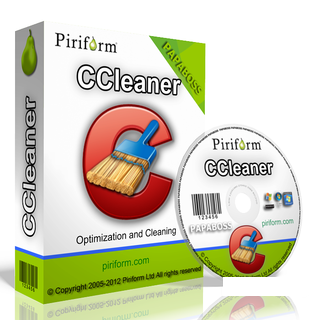
CCleaner Business Edition 4.xx Utility | Original Install File | OS: Windows XP/Vista/7/8 (x64x86) Languages:  Albanian, Arabic, A...


CCleaner Business Edition 4.xx
Utility | Original Install File | OS: Windows XP/Vista/7/8 (x64x86)

Languages: Albanian, Arabic, Armenian, Azeri, Belarusian, Bosnian, Brazilian Portuguese, Bulgarian, Catalan,Chinese, Croatian, Czech, Danish, Dutch, English, Estonian, Farsi, Finnish, French, Galician, Georgian, German,Greek, Hebrew, Hungarian, Italian, Japanese, Kazakh, Korean, Kurdish, Lithuanian, Macedonian, Norwegian, Polish,Romanian, Russian, Serbian, Serbian, Slovak, Slovenian, Spanish, Swedish, Turkish, Ukrainian, Vietnamese


CCleaner a utility for cleaning the debris in the operating system. In the course of their work CCleaner (Crap Cleaner) is looking for and removes unused files. These include: cookies, history, visiting sites in IE, temporary Internet files, search strings, files, Recycle Bin, etc. Also search for temporary files of third-party applications: Firefox, Opera, Media Player, eMule, Kazaa, Google Toolbar, Netscape, Office XP, Nero, Alcohol 120, Adobe Acrobat, WinRAR, WinAce, WinZip, GetRight, Morpheus, Download Accelerator Plus, VirtualDub , ZoneAlarm and many others. Can be subjected to cleaning and registry Windows, ridding it of its unnecessary extensions of the old library dll and wrong ways, which accumulate in considerable quantities, especially after the installation and removal of a variety of programs. Doing all of these operations on your system, you not only free up disk space, but also increase overall system performance.

CCleaner cleans the following components:
»Internet Explorer
"Cart
"The Clipboard
"Temporary Windows files
"Windows Logs
"The list of recent documents (in the Start menu)
"The history of executed commands (Start)
"The history of the assistant search in Windows XP
"Obsolete Data Prefetch in Windows XP
"Memory dumps after crashes Windows
"Chkdsk file fragments

Advanced options allow you to clean:
"The cache priority menu
"Cash Tray posts
"The cache sizes and locations Windows
"The history of aid to the user
"IIS log files
"Additional Folders

Safety:
From the outset, CCleaner developed a safe and secure program. It has several powerful levels of inspection, to be sure that no sensitive information or document would not be removed. We also guarantee that CCleaner does not have spyware or adware.

Privacy Policy:
For users, we also provide the function of permanently erasing files with multiple rewrites, which does not allow to restore them in any way.

Changes in 4.xx:
Improved History cleaning for Internet Explorer 10.
Optimized Cache cleaning for Internet Explorer 10.
Improved Download History cleaning for Firefox.
Improved DOMStore cookie cleaning for Internet Explorer 10.
Optimized detection of Google Chrome Startup items.
Improved drive detection in File Finder.
Improved System and Browser Monitoring (Pro Version).
Added cleaning for Adobe Fireworks 6.0, Nero 12 Platinum HD Suite, Foxit Reader 6.0, Virtual Clone Drive, PDFCreator and PDF Architect.
Improved cleaning for Freemake Video Converter.


&

DOWNLOAD CRACK FROM BELOW